Draft for local review. Not published. Highlighted items are waiting for verification.

Driving navigation for Japan

Your places.Your route.

行きたい場所へ、選んだ道で。

Pick the expressways, entrances, exits and stops that make a drive yours. Plan for free. Follow with SukiNAVI Pro or open your trip in Apple Maps or Google Maps.

Preview features Coming to the App Store

For iPhone and iPad. English and Japanese. Free to plan, Pro for guidance.

A route drawn through a chosen expressway entrance and exit Illustration. A dotted grey line shows a default route on ordinary streets. A white line shows the chosen route: it joins the expressway at the entrance the driver picked, leaves at the exit they picked, and ends at an orange destination pin. Get on Get off default route
Illustration, not a screenshot of the app.

Why SukiNAVI

You know the road you want. Now your navigator does too.

The name comes from 好き, "the one you like". Pick the interchange with the easy merge, the coast road instead of the tunnel, the service area with the good ramen. SukiNAVI plans around your choices instead of overriding them.

  • Plan it your way

    Places, ordered stops, expressways by name or number, entry and exit, toll and highway avoidance, and a departure or arrival time.

  • Drive it

    With Pro: turn-by-turn guidance spoken in English or Japanese, junction views and a Live Activity. Or hand the trip to the maps app you already use, free.

  • Stop where it suits

    Rest areas, fuel and EV charging along the route you chose, compared by how far ahead they are.

Features

Seven ways to make the route yours.

  1. Your expressway route

    Choose where you get on. And where you get off.

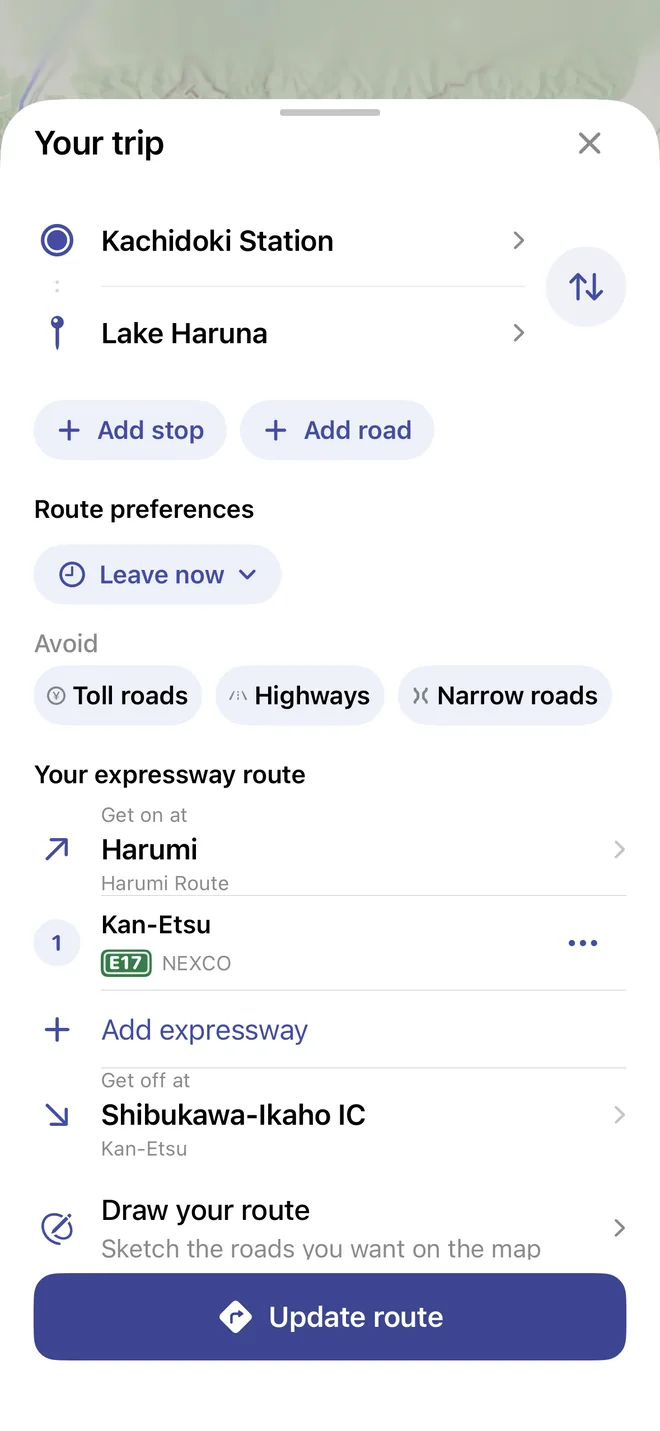
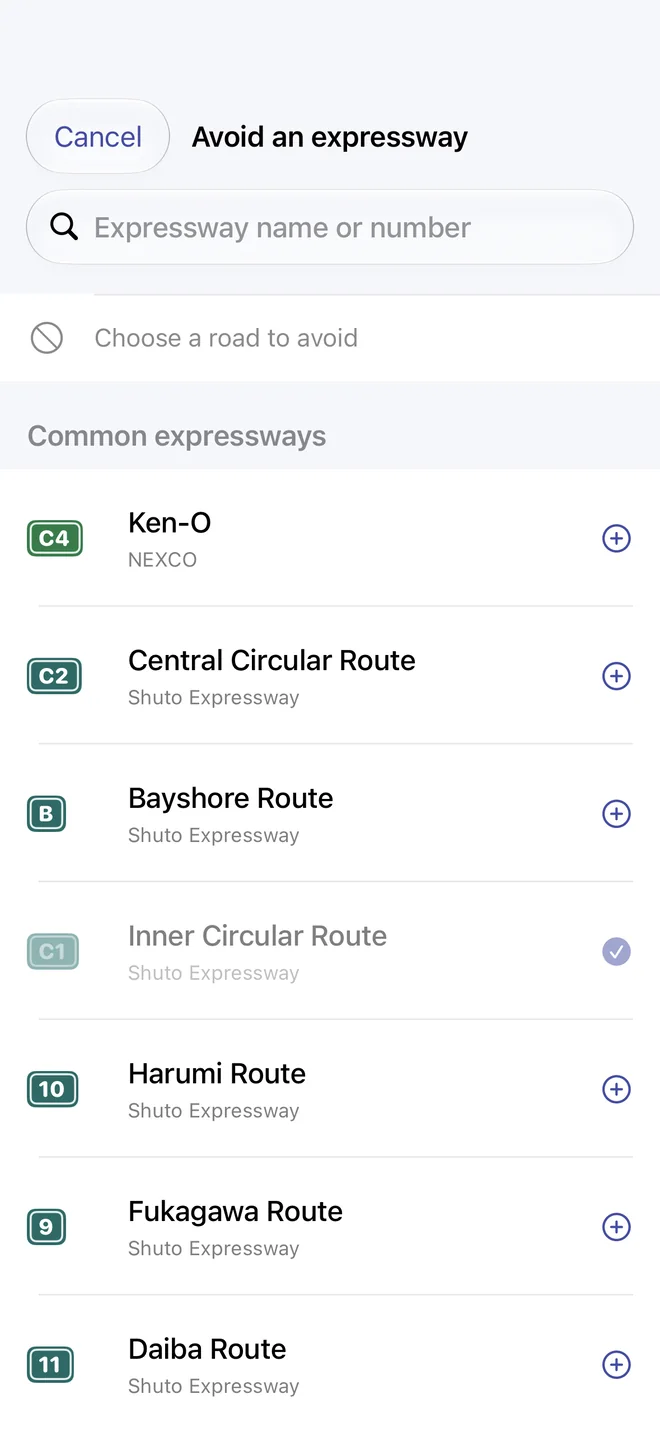
    Pick the entrance, the expressways in between, and the exit. SukiNAVI builds the trip through them, in the order you set.

    • Search interchanges and expressways by name, kana or route number.
    • Covers NEXCO expressways and the urban networks, including Shuto and Hanshin.
    • Swap From and To to plan the way back.

    Your choice is kept. If SukiNAVI can't build a drivable route through the entrance or exit you picked, it tells you instead of quietly choosing another.

    Get on Get off
    SukiNAVI trip panel, Your expressway route: get on at Harumi, the Kan-Etsu expressway, get off at Shibukawa-Ikaho IC
    Your expressway route, in the trip panel.
  2. Draw your route

    Draw the way you want to go.

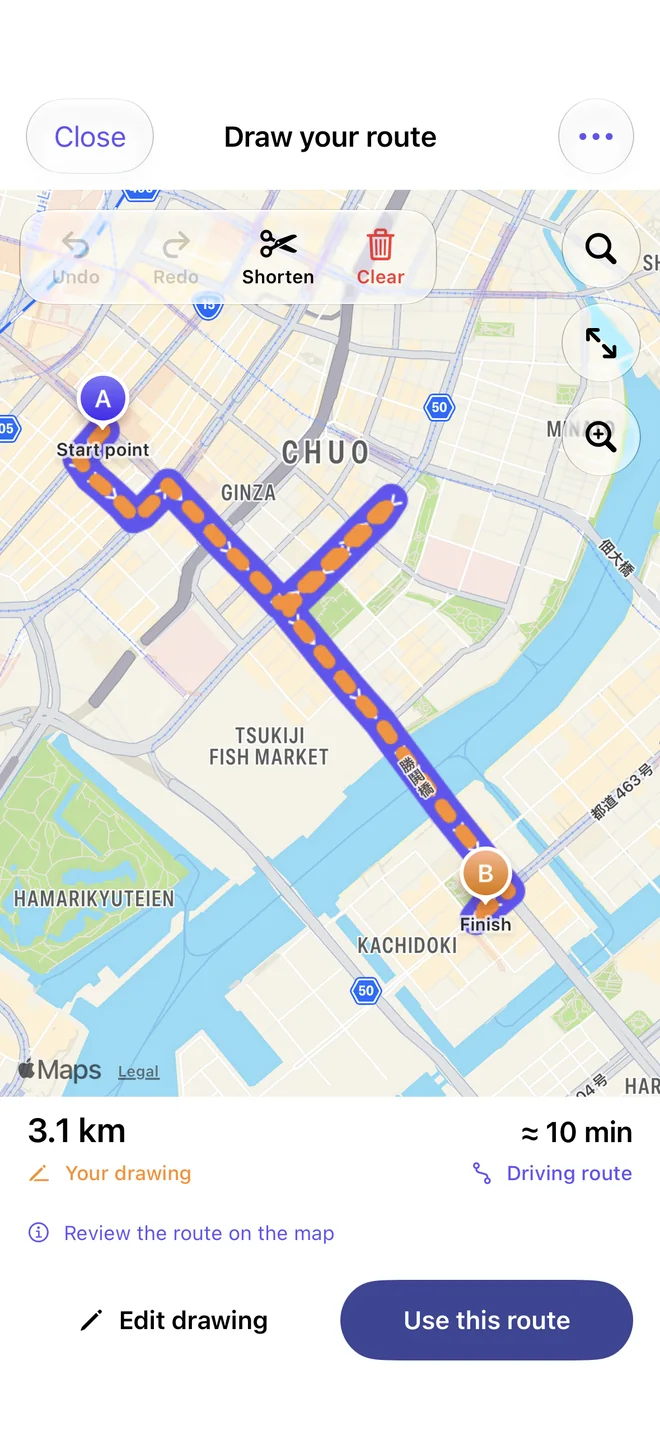
    Trace a line on the map with your finger. A rough sweep for a long drive, or a street-by-street path through town. SukiNAVI matches it to real roads you can review and then drive.

    • Set start and finish by search, your location or a pin on the map.
    • Pan, pinch and rotate while you draw. Undo, redo, or repair one section.
    • Miss a turn? Choose whether to go back or rejoin further ahead.

    Matched, not copied. The route follows legal, drivable roads in Japan, so it can differ from your line. Detailed drawings cover up to 20 km and rough sketches up to 300 km. Check the matched route before you set off.

    Your drawing Driving route
    SukiNAVI Draw your route screen: a hand-drawn line on the map matched to a driving route of 3.1 km
    Draw your route, then match it to roads.
  3. Avoid narrow roads

    Prefer wider roads. Tell it how wide your car is.

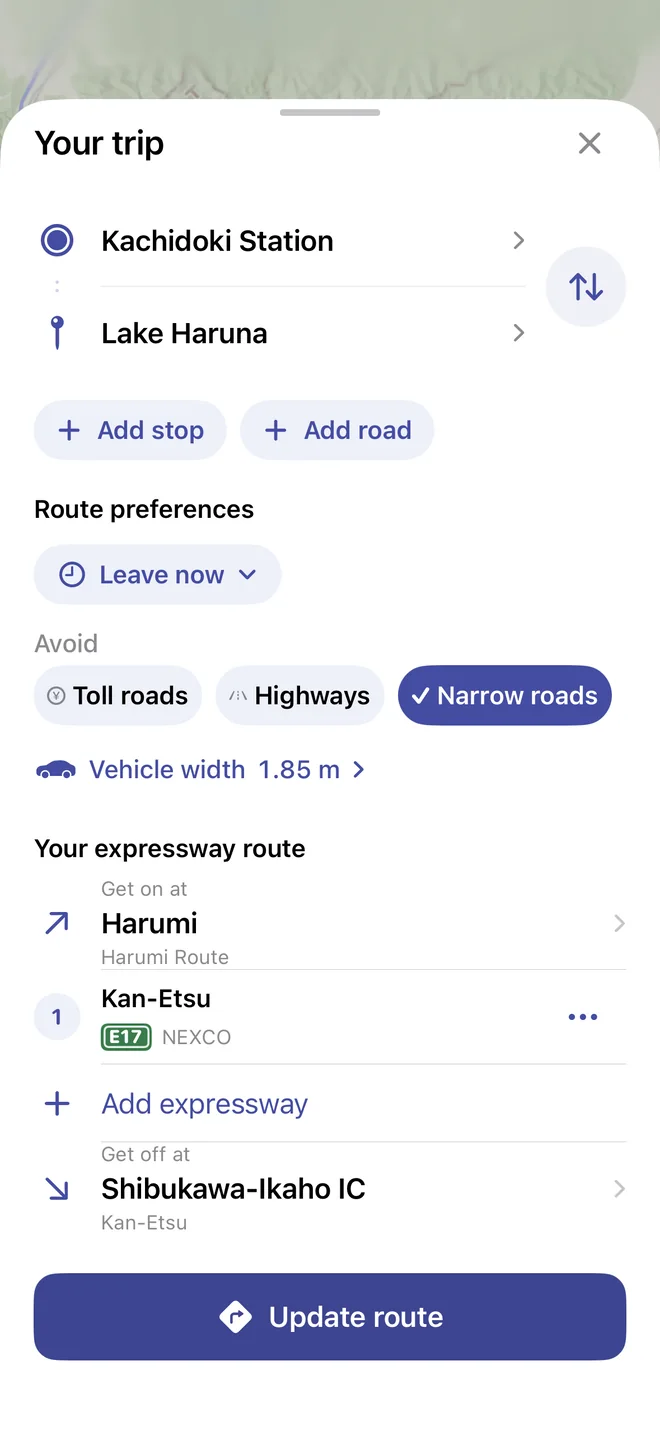
    Turn on Avoid narrow roads and, if you like, enter your vehicle's width. SukiNAVI favours roomier roads and still gets you to the door when the last stretch is the only way in.

    • Vehicle width from 0.80 m to 3.00 m.
    • See stretches that may be narrow on the route you picked.
    • Compare the mapped narrow distance against a wider alternative.

    A preference, not a clearance guarantee. Many roads have no recorded width, so SukiNAVI can't promise your vehicle will fit. Trust the signs and what you see.

    May be narrow Vehicle width set
    SukiNAVI route preferences with narrow roads avoided and a vehicle width of 1.85 m
    Narrow roads avoided, with your vehicle width.
  4. Open in another maps app

    Plan here. Drive with Apple Maps or Google Maps if you prefer.

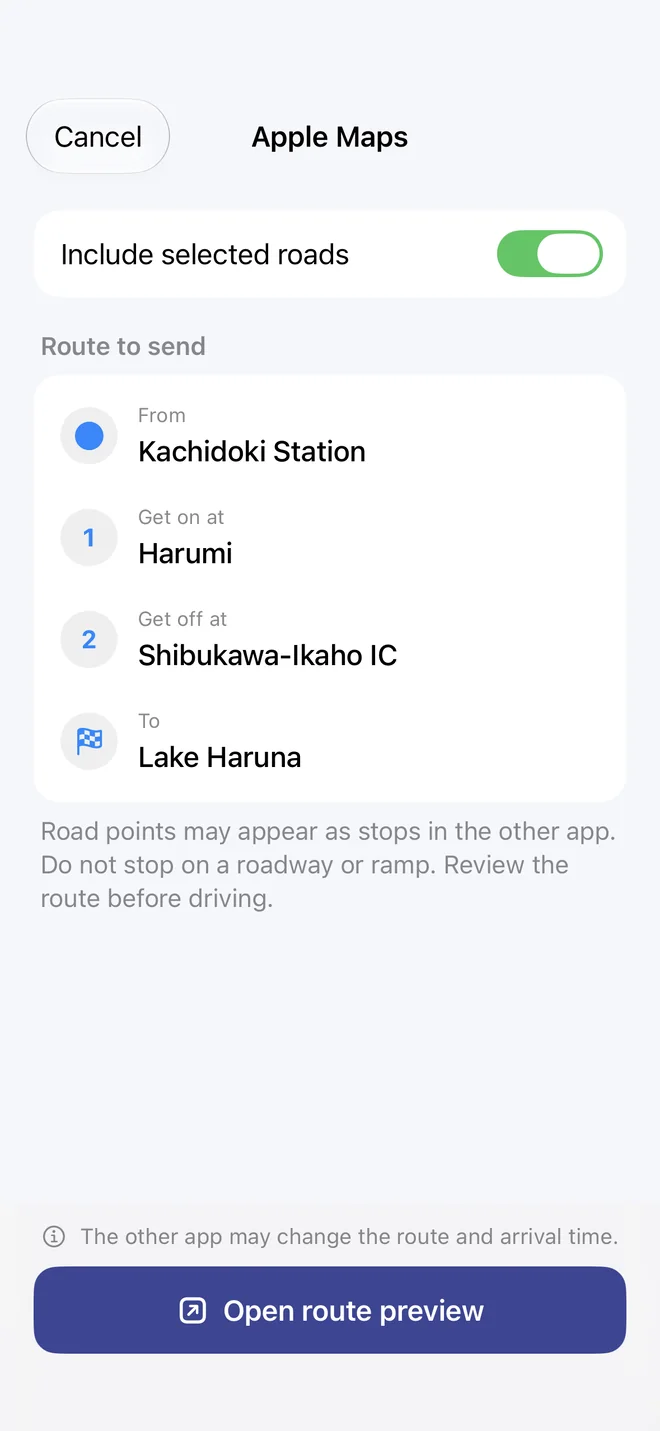
    Once the trip is ready, open it in the maps app you already trust. SukiNAVI passes your stops and road hints so you don't have to enter them again.

    • Open in Apple Maps or Open in Google Maps, straight from the route.
    • Review the route to send, stop by stop, before you switch.
    • SukiNAVI warns you when a trip has more stops than the other app accepts.

    The other app works out its own route. It may change the roads and the arrival time, so the same roads are not guaranteed. Vehicle width and scheduled times aren't passed along, and each app limits how many stops it accepts.

    Apple Maps recalculates the route Google Maps recalculates the route
    SukiNAVI sheet for Apple Maps listing the route to send, with the note that the other app may change the route and arrival time
    The route to send, before opening another maps app.
  5. Along the route

    A useful stop, along the way.

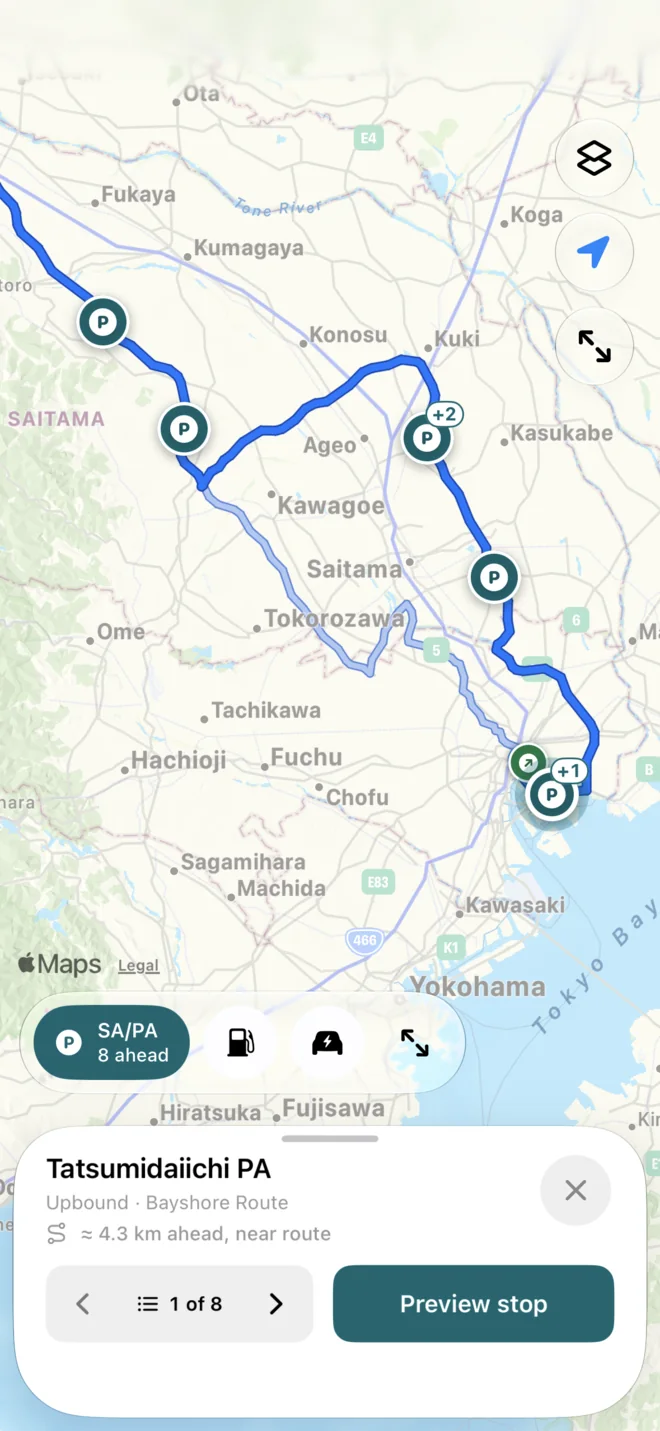
    See service areas, parking areas, fuel and EV charging near your chosen route, with distances ahead. Preview driving access before adding a stop.

    • Service and parking areas filtered by travel direction where the map data is clear.
    • Fuel and EV charging near the route, with how far ahead each one is.
    • Compare up to three stops by estimated extra driving time, then add one to the trip.

    Check before you count on it. Fuel and charging places come from Apple's place search. SukiNAVI doesn't confirm opening hours, prices or whether a charger is free. Driving estimates exclude stop time and live traffic.

    Rest area Fuel EV charging
    SukiNAVI map with service and parking areas marked along the route and a card for a parking area 4.3 km ahead
    Service and parking areas along the route.
  6. CarPlay Planned · Pro

    Your route, on the car's display.

    CarPlay support is planned, so that the route you prepared on your iPhone is the one you follow on the dashboard. Guidance in CarPlay will be part of SukiNAVI Pro.

    • Designed to show the map, your route line and the next turn on the car display.
    • Route choices, mute, overview and end trip from the car.

    Needs a vehicle that supports CarPlay. Lane guidance appears only where the map data supplies it. Plan and edit detailed routes on iPhone before you drive.

Free and Pro

Plan for free. Add guidance with Pro.

Planning is free: every way of choosing your route on this page. SukiNAVI Pro adds guidance while you drive. These are the planned prices in Japan. The app is not released yet, and the App Store will show the final price for your region.

Free

¥0No account or sign-up needed.

  • Plan trips with your places, stops and expressway entry and exit.
  • Draw your own route.
  • Choose road sections, avoid an expressway, prefer wider roads.
  • Saved places and collections.
  • Compare routes, and stops along the route.
  • Open the trip in Apple Maps or Google Maps.

No ads.

SukiNAVI Pro

¥3,000 a yearor ¥400 a month. Planned prices in Japan.

  • Everything in Free.
  • SukiNAVI turn-by-turn guidance along the route you chose.
  • Guidance in CarPlay (planned).
  • The yearly plan starts with a 7-day free trial for eligible new subscribers.

Subscribe in the app once it is available. Nothing is sold on this website.

Pro is an auto-renewing subscription bought through Apple. The 7-day trial applies to the yearly plan only, and Apple decides who is eligible. After the trial the yearly price is charged unless you cancel at least 24 hours before it ends. A subscription renews until you cancel it in your App Store account settings. Prices vary by country or region and are shown in the App Store before you confirm. See the terms.

Plain facts

What SukiNAVI doesn't promise.

A navigator is only as good as its data. Here is where ours runs out, so you know when to rely on your own eyes.

  • Arrival times are estimates

    Traffic timing is used only where it can be matched to the roads on your route. Sometimes that is partial, sometimes not available.

  • Closures aren't fully checked

    Road alerts show the notices available. An empty list does not confirm that a road or entrance is open.

  • Lanes only when the data has them

    SukiNAVI shows lane guidance where map data supplies it and never guesses a lane.

  • Road widths are incomplete

    Avoid narrow roads is a preference based on the widths that are recorded. It is not a guarantee that a vehicle fits.

  • Tolls are estimates

    Estimates cover NEXCO and Shuto expressways. Other toll roads are shown as unpriced, and the amount you pay may differ.

  • Other maps apps recalculate

    When you open a trip in Apple Maps or Google Maps, that app chooses its own roads from your stops.

Read the full data and route limits

Questions

Before you ask.

When can I get SukiNAVI?

SukiNAVI is coming to the App Store. There is no release date to announce yet, and this page will change when it is available.

Where does it work?

SukiNAVI is built for driving in Japan. Its expressway list includes NEXCO routes and the urban expressways of Tokyo, Osaka and Kobe, Nagoya, Fukuoka, Kitakyushu and Hiroshima. Map detail, road widths, lane data and traffic matching vary from place to place.

Which devices and languages are supported?

iPhone and iPad with iOS 26 and iPadOS 26 or later. The app and its spoken guidance are available in English and Japanese.

Do I need an account?

No. There is no sign-up, no password and no profile. Saved places, collections, drawings and trips are stored on your device.

Does it need an internet connection?

Yes, for finding routes, searching for places and reading traffic. Your saved places stay available on your device without one.

Will Apple Maps or Google Maps follow my exact route?

Not necessarily. SukiNAVI passes your stops and road hints, and the other app then calculates its own route. To be guided along the roads you chose, use SukiNAVI's own guidance, which is part of Pro.

What happens to my location?

To find a route, the app sends the places and route you chose to the SukiNAVI routing service and to Apple's map services. There are no ads and no advertising trackers. The privacy policy explains exactly what is sent, what stays on your device and what is kept.

SukiNAVI app icon

Your places. Your route.

SukiNAVI is coming to the App Store for iPhone and iPad.

Coming to the App Store Contact us